content-creation Guide

How to Extend a Video with AI

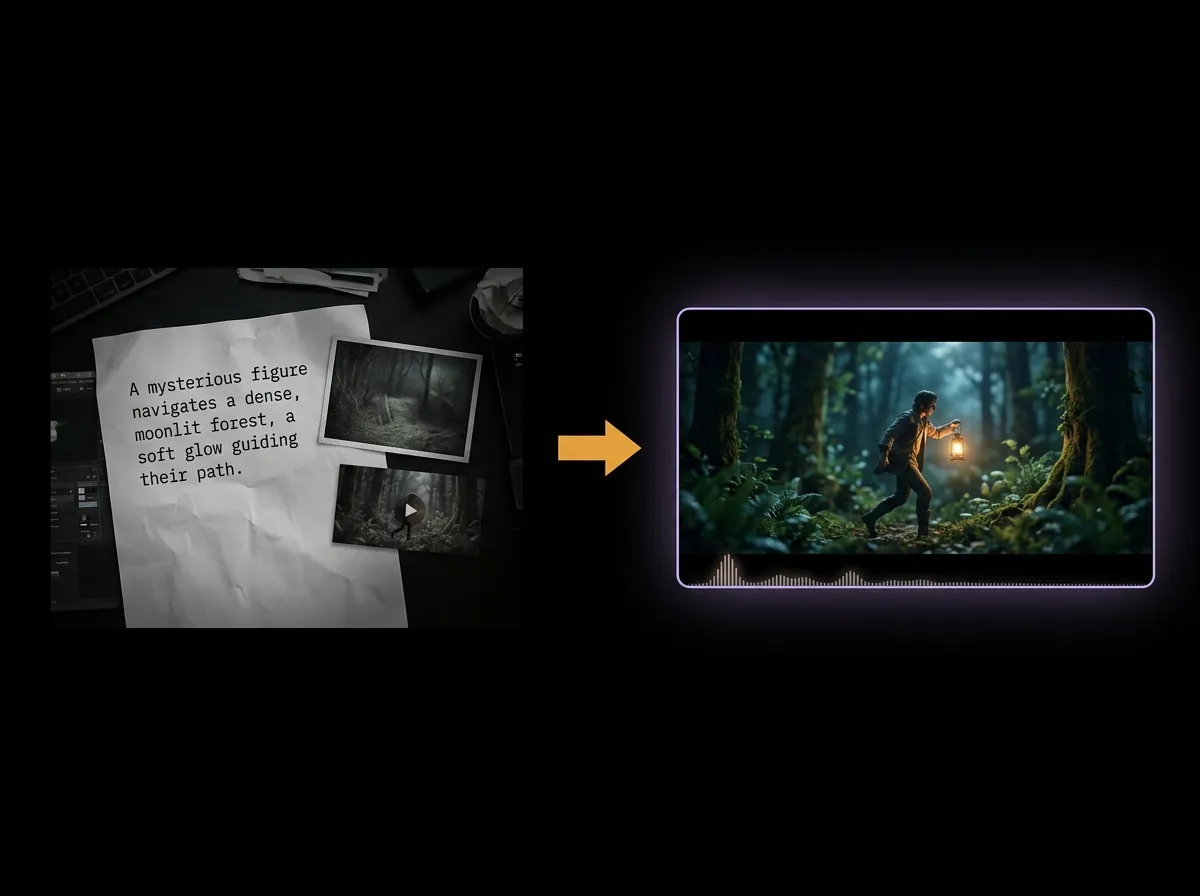
Continue a clip seamlessly using AADDYY's AI Seedance Video Generator. Upload your existing footage as a reference video and describe how the scene should continue — the AI extends it with matching motion, style, and audio. Great for stretching short clips to fit your timeline.

·2 min read

Step-by-Step Guide

1

Upload your clip

Add your existing video (MP4 or MOV) as a reference, up to 15 seconds total.

2

Describe the continuation

Tell the AI how the scene should keep going, referencing the video by number.

3

Set length and format

Choose how long the new segment runs and which aspect ratio to use.

4

Generate and download

Download the extended MP4 once it's ready.
AI Seedance Video Generator

Try AI Seedance Video Generator on AADDYY

Continue a clip seamlessly using AADDYY's AI Seedance Video Generator. Upload your existing footage as a reference video and describe how the scene should continue — the AI extends it with matching motion, style, and audio. Great for stretching short clips to fit your timeline.

Use AI Seedance Video Generator Now

Pay-per-use. No subscription required.

Related Guides

Reference-to-Video AI — Generate Video from Images, Clips & Audio

AADDYY's AI Seedance Video Generator is a reference-to-video tool: combine a text prompt with reference images, videos, and audio to control the look, motion, and sound of your clip. Reference any material by number in your prompt for precise creative direction.

AI Seedance Video Generator

Image to Video AI Generator — Turn Photos into Motion

Turn still images into moving video with AADDYY's AI Seedance Video Generator. Upload up to nine reference images, describe the motion and camera move you want, and the AI animates them into a short clip with synchronized audio. Ideal for bringing product shots and artwork to life.

AI Seedance Video Generator

How to Make AI-Generated Videos Step by Step

Making AI-generated videos is straightforward with AADDYY. Write a text prompt describing the visual scene and motion, choose your output settings, and let the AI render the video. This guide walks you through every step from prompt writing to final export.

AI Video Generator